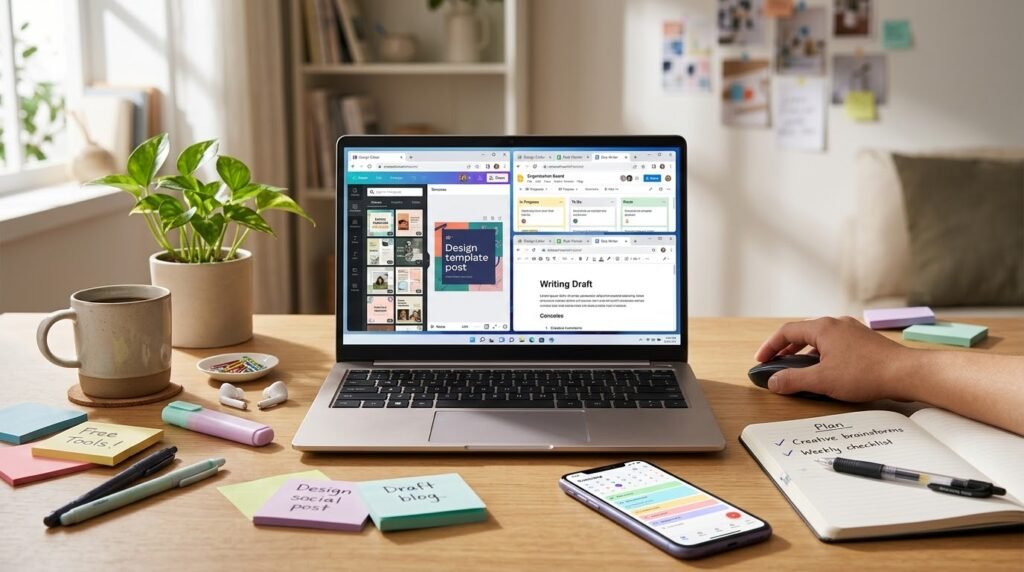
You do not always need expensive software to get things done. Whether you are a student, freelancer, content creator, entrepreneur, or small business owner, free online tools can help you create professional designs, prepare documents, organize information, and manage everyday tasks.
The key is choosing tools that solve real problems without adding unnecessary complexity. In this guide, Digital Software Guide highlights seven useful options to help you get started.
What you will learn
- Which free tools can help with design and content creation
- How to create documents, spreadsheets, and forms
- Ways to organize projects and everyday tasks
- How to choose free tools without overspending
1. Canva Free — For Designs and Visual Content
Canva is an online design platform that helps users create social media graphics, presentations, posters, simple marketing materials, and other visual content without needing advanced design skills.
What you can use it for:
- Creating graphics for social media posts
- Designing presentations and simple flyers
- Preparing visual content for a website or business
- Starting from templates and adapting them to your needs
Why consider it: Its visual editor can make basic design work more accessible to beginners and small teams.
Keep in mind: Canva has a free plan, but some templates, assets, and advanced features require payment. Check the design elements and usage terms before publishing commercial work.
2. Google Docs — For Writing and Documents
Google Docs is a practical option for writing letters, preparing reports, drafting articles, and collaborating on documents online. A personal Google account can access Docs without purchasing a business subscription.
What you can use it for:
- Writing articles, proposals, and business letters
- Preparing meeting notes and checklists
- Sharing documents with collaborators
- Reviewing edits and comments in a shared document
Why consider it: Your documents can be accessed online, making it convenient to continue work across compatible devices.
Keep in mind: Internet access is needed for many online workflows. Review sharing permissions before sending a document containing private information.
3. Google Sheets — For Spreadsheets and Tracking
Google Sheets helps you organize information in rows and columns. It is useful when you need a straightforward way to track expenses, plan content, maintain lists, or monitor business activities.
What you can use it for:
- Tracking income and expenses
- Creating an editorial calendar for articles and videos
- Managing customer or inventory lists
- Sorting information and calculating totals with formulas
Why consider it: A simple spreadsheet can bring structure to information that would otherwise be scattered across notes and messages.
Keep in mind: Set access permissions carefully and avoid storing sensitive customer or financial information in a sheet shared publicly.
4. Google Forms — For Surveys and Enquiries
Google Forms lets you create online forms for collecting responses. It can help individuals and businesses gather information without building a custom form from scratch.
What you can use it for:
- Collecting customer feedback
- Creating surveys and questionnaires
- Receiving event registrations
- Gathering basic enquiries or collecting information for a project
Why consider it: Responses can be organized digitally, and forms can be shared through a link.
Keep in mind: Tell respondents what information you collect and why. Do not request unnecessary sensitive information, and check your privacy obligations before collecting personal data.
5. Google Drive — For File Storage and Sharing
Google Drive provides cloud storage for files, including documents, spreadsheets, images, and other digital materials. It can help you keep work organized and access files across supported devices.
What you can use it for:
- Keeping project documents in organized folders
- Sharing files with colleagues or clients
- Storing copies of important work
- Finding files without relying only on a phone or computer’s local storage
Why consider it: Online file access can be helpful when you work from more than one device or collaborate with others.
Keep in mind: Free storage is limited and shared across eligible Google services. Check your account’s available space, and keep a separate backup of important files where appropriate.
6. Trello — For Tasks and Project Organization
Trello uses boards, lists, and cards to help you organize work visually. It can be useful for planning projects, tracking tasks, and seeing what needs to happen next.
What you can use it for:
- Planning weekly tasks
- Organizing a website or content project
- Tracking work from “To Do” to “Done”
- Coordinating responsibilities with a small team
Why consider it: A visual task board makes progress easier to understand at a glance.
Keep in mind: Trello offers different plan levels, and available features or usage limits can change. Check the current plan details before building a workflow around a particular feature.
7. Google Calendar — For Scheduling and Reminders
Google Calendar can help you schedule appointments, set reminders, plan deadlines, and create a more consistent daily routine.
What you can use it for:
- Scheduling meetings and appointments
- Setting reminders for deadlines
- Planning a weekly publishing schedule
- Blocking out time for focused work
Why consider it: Putting commitments in one calendar can reduce reliance on memory and scattered notes.
Keep in mind: Check calendar sharing and notification settings to make sure your schedule is visible only to the people you intend.
How to Choose the Right Free Tools
You do not need to sign up for every tool on this list. Start with the tasks that consume the most time or cause the most difficulty, then choose tools that directly address those problems.
- Identify the task. Decide whether you need to design content, write documents, collect responses, store files, or manage deadlines.
- Check the free plan. Confirm which features are included and whether storage, usage, or collaboration limits will affect you.
- Test one tool at a time. Complete a real task before adding another service to your workflow.
- Protect your information. Review privacy policies, account security, and sharing settings before uploading business or customer data.
- Review your subscriptions. Free trials can become paid plans. Keep track of trial dates and payment details if you sign up.
- Upgrade only when necessary. Consider a paid plan only when its extra features provide enough value for your needs and budget.
A Simple Free Toolkit for Beginners
If you are not sure where to start, use this simple combination as a starting point. You can add or replace tools as your needs change.
| Your need | Tool to try | First task |
|---|---|---|
| Visual content | Canva | Create one social media graphic |
| Writing | Google Docs | Draft a one-page plan |
| Tracking | Google Sheets | Record weekly expenses or tasks |
| Collecting responses | Google Forms | Create a short feedback form |
| Planning work | Trello or Google Calendar | Plan your next seven days |
Frequently Asked Questions
Are free online tools good enough for a small business?
They can be. Many small businesses can handle basic design, documents, scheduling, and task tracking with free plans. Your requirements, team size, privacy needs, and usage limits will determine whether a paid option is eventually worthwhile.
Do free tools always remain free?
No. Providers can change plan features, limits, and terms. Some services offer a permanent free tier, while others limit particular features or provide free trials. Check the official pricing page before relying on a feature.
Can I use free tools on my phone?
Many of these services can be accessed through a mobile browser, and some also provide mobile apps. The available features may differ between mobile and desktop, so test the tasks you need to complete on your device.
How many free tools should I use?
Start with two or three that solve your most important problems. A small, well-organized toolkit is often easier to maintain than several overlapping apps.
Final Thoughts
Free online tools can help you design, write, organize, plan, and manage everyday work without immediately committing to paid software. The best choice is not necessarily the tool with the most features; it is the one that fits your actual needs, budget, and workflow.
Start with one task, test a suitable free tool, and build your toolkit gradually. Always check the current terms and free-plan limits before depending on a service for important work.
Keep discovering smarter digital resources
Explore Digital Software Guide for practical guides and ideas to help you make better digital choices.
Visit Digital Software Guide →Editorial note: This guide is for general informational purposes. Free-plan availability, features, and limits can change. Review each provider’s current terms before signing up or using a service for business-critical work.